Focused tool

Video quality settings

Choose your noise, detail and output-size preferences in one place.

01 / STUDIO MONITORDETAIL STUDY16:9
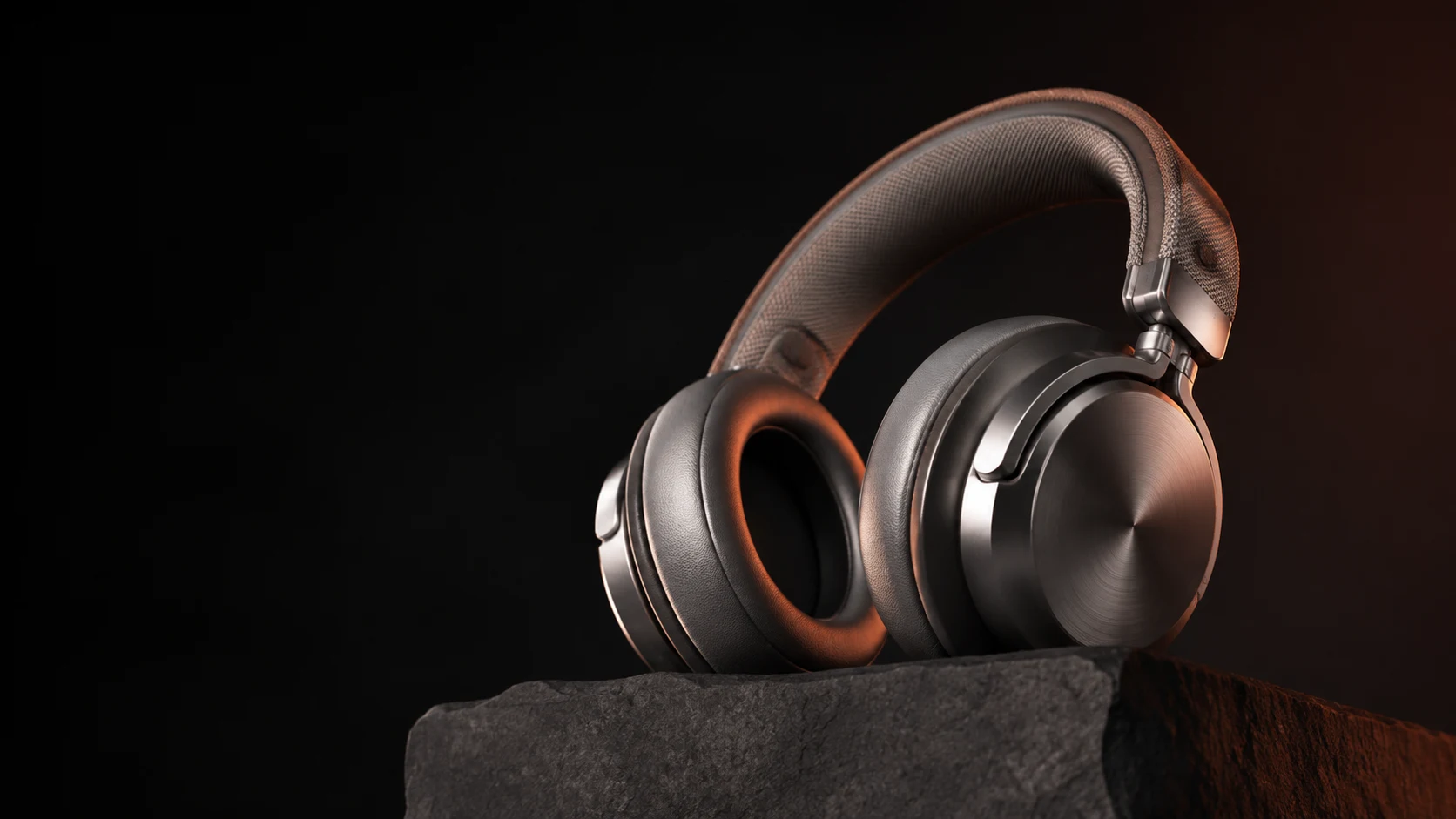
AI-created titanium headphones showing fine brushed metal and fabric detail under warm studio light.
↔
SOFTENED SAMPLEORIGINAL SAMPLE
Every surface tells a story.STUDIO DETAIL / AI-GENERATED SAMPLE
ADJUST / REVIEW

Your controls.

↑Choose your video

Sample preview only. AI processing and export are not available.

Choose your noise, detail and output-size preferences in one place.

How to use video quality settings

  1. Inspect the supplied sample or play a video from your device.
  2. Set noise and detail preferences separately, then choose a target size. These controls record intent; they do not process footage.
  3. Move the sample divider and review your settings summary.

What to look for

Keep the source size as your starting point. A larger target does not create missing detail. Look at edges and textures when evaluating any finished edit.

Common questions

Can I download a finished video?

No. This workspace lets you explore the controls, but does not process or export video. Keep your original footage and save any notes you want to use later.

What happens to my content?

Your selections stay in this page. Closing or refreshing it clears them. You do not need an account. See our privacy information or contact support if you have questions.
Related pages

Continue

Need a hand?

Ask a question or share feedback about your experience.

Contact

Contact support

Email support@minimax.live

We welcome your questions and suggestions.

THE MINIMAX FIELD NOTES

Understand the next adjustment.

Practical guides, examples and checks to help you decide what to do next.

PRODUCT WALKTHROUGH

See the workspace in motion.

See how to use the controls with the sample. AI processing and export are not available.

  1. Set noise and detail intent.
  2. Move the sample divider.
  3. Review the settings summary.
Watch with English captions
Read the steps

Set noise and detail intent. Move the sample divider. Review the settings summary. Sample demonstration; no video is processed.